
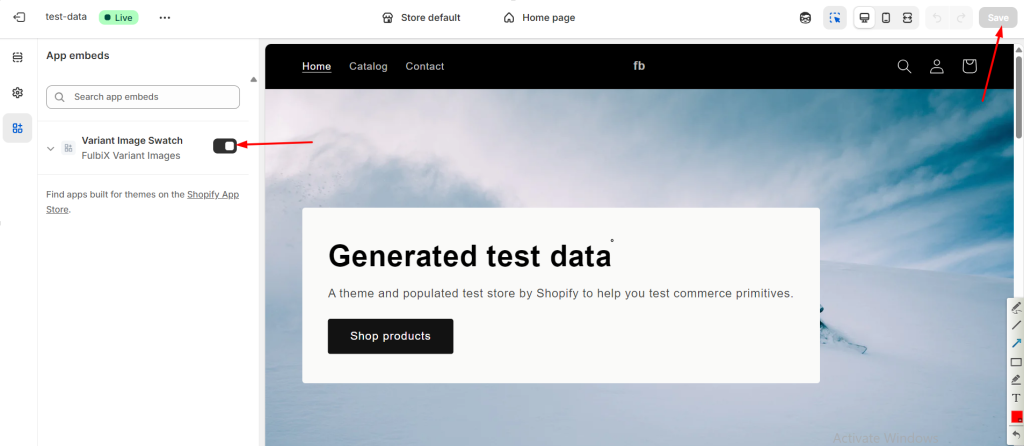
1. Activate the App in Your Theme #
- Go to Online Store → Themes → Click on Edit theme
- Turn on the app embed named “Variant Image Swatch” powered by FulbiX.
- Click Save to complete.
2. Assign Product Images to the Correct Variants #
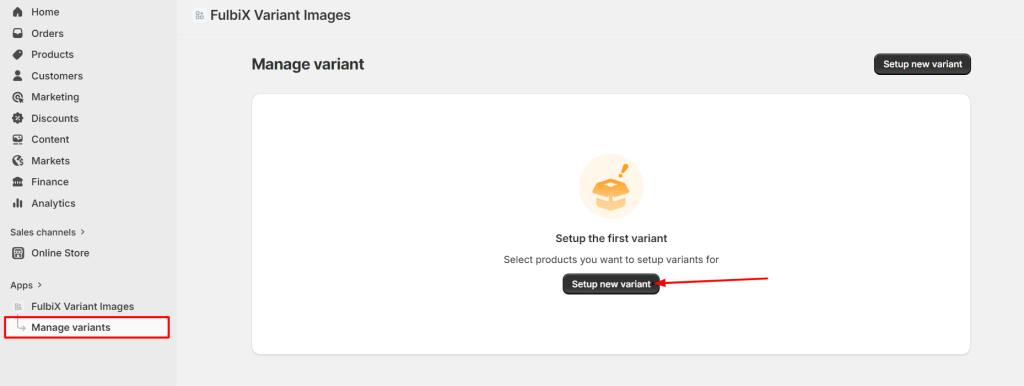
- On the app, go to the page Manage variants
- Click Setup new variant.
- Select the product you want to organize variant images for.
Assign images to each variant #
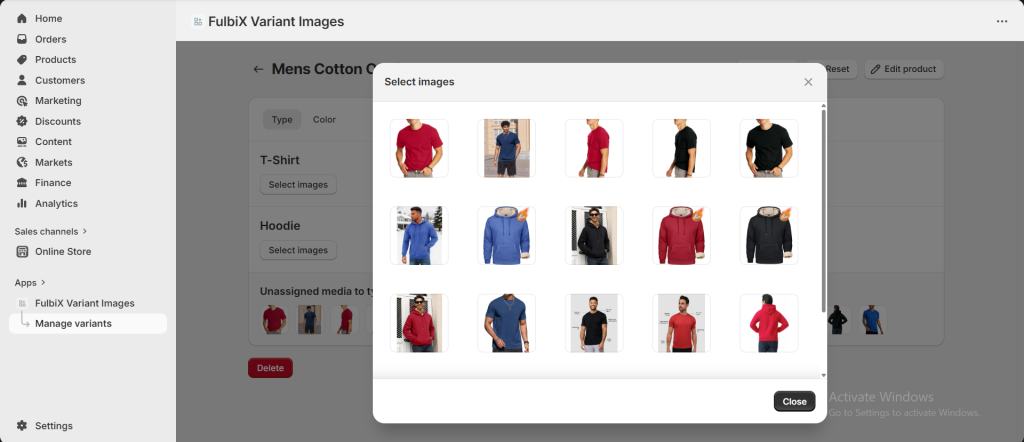
Each variant has its own image row. For each variant:
- Click Browser.
- Select the images that belong to that specific variant.
- The selected images will appear in that variant’s row.
- Repeat this for all variants. After finishing, click Save to apply your changes.
3. Preview on Your Live Store #
- Click Preview to view variant images on the live store.
- Check that:
- The correct images display when a variant is selected.
- No unrelated images appear.
- The product page looks clean and accurate.
- The correct images display when a variant is selected.
If everything looks good, your setup is complete.
Please contact us at [email protected] if you have any queries.


